
CJMS Virtual Learning
This page will be updated in later August 2020 to reflect schedules, assignments, and supports for the 2020-2021 Virtual Learning Program for Semester 1.
We miss seeing you every day CJMS Students, but together we will get through this. Thank you for your persistence in distance learning. We are so glad you are our students! "We Miss You Cabin John"
How do I update the Zoom app on my PC/Mac computer?
Cabin John MS Learning Information
- CJMS Virtual Learning Master Schedule (coming soon)
- CJMS Virtual Learning Handbook (coming soon)
- CJMS Student Blank Planning Schedule (Click to make a copy) or Print PDF
Visit the Cabin John MS course on your myMCPS Classroom Dashboard for more information and updates.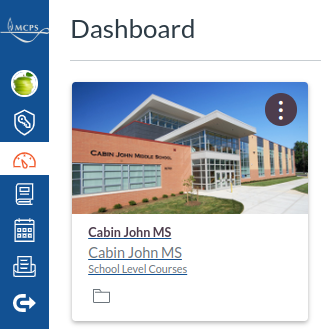
MCPS Learning Resources
- MCPS Instructional Activities Center
- Remote Learning for Parents and Students
- All new CJMS students and parents are invited to participate in our 2020 Orientation Events (Links to an external site.)
- Updated Draft Plan for Fall Recovery 2020-2021 School Year (Links to an external site.) (8.07.20)
- Submit Feedback to MCPS on the Fall Recovery Plan
- Students, do you have a Montgomery County Public Library Card? Click to register for your MCPL Digital Card (Links to an external site.)
Technical Help
- Zoom for Students Directions
- Creating Student Zoom Account and Joining Sessions
- Student Learning Resources
- Student Privacy and Continuity of Learning
- Creating Student Zoom Account and Joining Sessions
- VIDEO: How to login to Zoom
- Entrando a Zoom
- VIDEO: How to find and login to MyMCPS
- How do I set the myMCPS Classroom (Canvas) notification preferences as a student?
- VIDEO: How to Adjust Notifications Preferences in myMCPS Classroom
- How to Adjust Notifications Preferences in myMCPS Classroom (video)
- myMCPS Classroom: Student Submission Assignments Directions
- myMCPS Classroom: Student Submission Assignment (video)
- myMCPS Classroom: How Students Submit a Google Cloud Assignment (video)
- myMCPS Classroom: How to Embed and Upload a Picture
- How to Embed and Upload a Picture in myMCPS Classroom
- How to Split Your Screen on a Chromebook
- Using Read&Write for Google Chrome from Home
- Kami Support User Guide
- Practice keyboarding skills with these apps TypingClub, KidzType, Typing.com, Nitrotype
- Printers at Home
- Accessing Online Learning Frequently Asked Questions
- If you still need an MCPS Chromebook, use this form or contact your school’s principal via the “Ask A Question” button
- Please report technical issues and questions to mymcps_support@mcpsmd.net
-
MCPS Community Tech Support Help – For the technical needs of any student or parent during remote learning. 240-740-7022
-
Student Device Pick-Up/Exchanges: Families can pick up or exchange Chromebooks and MiFi devices at 45 West Gude Drive from 10:00 a.m. - 12:00 p.m. every weekday. Families should wear masks and bring their child’s student ID number with them.
Coronavirus Emergency School Closure Information
- MCPS Coronavirus Information Webpage
- NEW: MCPS Community Message: Changes to the School Calendar and Phase One of Remote Learning
- Talking to Children about COVID-19 (Coronavirus)
- COVID-19 School System and Community Resources
- Emergency Closure Meals Service for MCPS Students (updated 3.23.20)
-
MCPS Food Distribution: Students may pick up breakfast, lunch and dinner meals at designated school and mobile truck sites from 10 a.m. to 12 p.m. Bus distribution will take place from 9 a.m. to 10 a.m. To view the complete list of sites, visit the webpage.
For additional food assistance, call the Food Access Call Center at 311. For additional food resources, visit the County's COVID-19 Information Portal
- español | 中文 | français | tiếng Việt | 한국어| አማርኛ